
1win Login in Tanzania 2026: How to Sign In, Recover Access, and Fix Login Problems
Logging into 1win takes seconds under normal conditions, but when something goes wrong — a forgotten password, an unrecognised device prompt, a suspended account, or a login page that simply will not load — knowing exactly what to do saves significant time and frustration. This guide covers every login method available on 1win, the step-by-step sign-in process for Tanzanian players, how to recover a lost password, how to set up biometric login on mobile, and a full troubleshooting table for the seven most common login problems.
All information is specific to Tanzanian players accessing 1win via the Android app, iOS app, or desktop browser in 2026.
1win Login Methods: All Options Available in Tanzania

1win supports five login methods. The right one for you depends on how you registered and which device you are using. The table below summarises all options with what each requires and which players each suits best.
| Login method | Where available | What you need | Best for |
|---|---|---|---|
| Phone number + password | Standard login on app and browser | Phone number registered during sign-up + account password | Most Tanzanian players — fastest manual login |
| Email + password | Standard login on app and browser | Email address registered during sign-up + account password | Players who registered by email |
| Biometric (fingerprint / Face ID) | App only — Android and iOS | Enabled in security settings after first manual login | Fastest login method — recommended once set up |
| Google account | App and browser — if registered via Google | Google account linked during registration | Players who used social sign-on during registration |
| Facebook account | App and browser — if registered via Facebook | Facebook account linked during registration | Players who used social sign-on during registration |
For the majority of Tanzanian players who registered by phone number, the standard phone number and password login is the default method on both the app and the browser. Once you have completed your first manual login on the mobile app, enabling biometric authentication is the single most practical upgrade you can make — it removes the need to type your password on every session and works even when your hands are occupied during a live match.
ℹ If you registered via Google or Facebook and later lose access to that social account, recovering your 1win login becomes significantly more complex than recovering a phone or email account. If you currently use social login and want a more independent recovery path, contact support to add a phone number or email address as a backup login method.
How to Log In to 1win
Log In Guide
The steps below apply to phone number and email login on both the 1win app and the desktop browser. The process is identical on Android and iOS.
Open 1win on your device
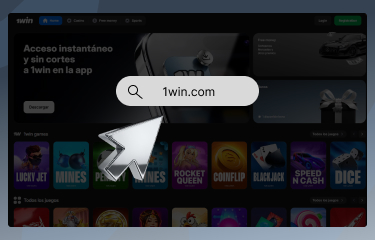
Go to 1win.com in your browser or open the 1win app on Android or iOS. Do not use unofficial mirror sites — always access the platform through the official domain.
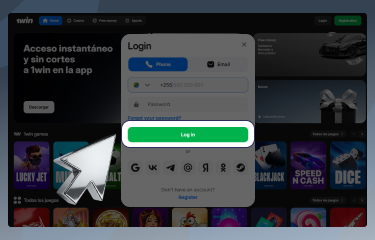
Tap the Login button
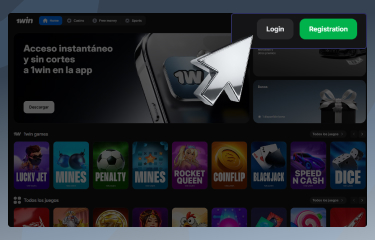
On the homepage, tap or click the Login button in the top right corner of the screen. On the app, it appears on the home screen below the registration option.
Enter your credentials
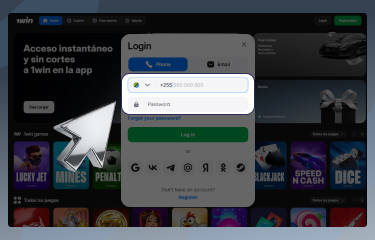
Type the phone number or email address you registered with, then enter your password. Both fields are case-sensitive — check that your phone keyboard has not auto-corrected or capitalised any characters.
Complete security verification if prompted
On some logins — especially from a new device or location — 1win may request an SMS or email verification code as an additional security step. Enter the code within the time limit shown.
Access your account
Once authenticated, you land on the 1win homepage with your account balance visible in the top right. Your sportsbook, casino, bonuses, and account settings are all accessible from the main navigation.
How to Set Up Biometric Login on the 1win App
Biometric login — fingerprint on Android, fingerprint or Face ID on iOS — is available on the 1win mobile app and is the fastest and most secure way to access your account on a daily basis. It is not enabled by default and must be set up manually after your first successful password login.
To enable biometric login, open the app and log in with your password as normal. Go to your account menu, select Settings, then Security. You will see the option to enable fingerprint or Face ID login depending on your device. Tap Enable, authenticate once with your biometric to confirm, and the feature is active from the next login onwards.
Once enabled, the login screen displays a biometric prompt instead of the password fields when you open the app. You can still choose to log in with your password manually if needed — for example if your phone does not recognise your fingerprint after a long period or in cold conditions. Biometric login does not replace your password; it sits alongside it as an alternative authentication method.
- Available on: Android (fingerprint) and iOS (fingerprint and Face ID)
- Where to enable: account menu → Settings → Security → Enable biometric login
- Requires: one successful password login on the device before activation
- Fallback: password login remains available at all times if biometric fails
- Security note: biometric data is stored on your device only — 1win does not receive or store your fingerprint or facial data
How to Recover Your 1win Password
If you have forgotten your password or are locked out of your account, the recovery process takes under three minutes provided you have access to the phone number or email address you registered with. Follow the steps below exactly.
- Tap ‘Forgot Password’ on the login screen. Below the password field on the login page, tap the Forgot Password link. This is available on both the app and the browser version.
- Choose your recovery method. Select whether you want to reset via SMS (phone number) or via email link. Choose the method that matches how you registered and which contact you currently have access to.
- Enter your registered contact. Type the phone number or email address associated with your account. The reset code or link is sent to this address — ensure it is the one you registered with, not a different number or inbox.
- Enter the reset code or click the link. For SMS recovery, enter the 4 or 6-digit code sent to your phone within 10 minutes. For email recovery, click the reset link in the email — check your spam folder if it does not arrive within 5 minutes.
- Set a new password. Choose a new password of at least 8 characters. Include a mix of letters and numbers. Do not reuse a previous password and avoid using your phone number or date of birth.
- Log in with your new password. Return to the login screen and enter your credentials using the new password. Enable biometric login from security settings at this point to avoid needing to type your password in future.
ℹ If you registered using the One Click method and were assigned a random password, it is very likely that the password was never stored anywhere. In this case, go straight to the Forgot Password flow — there is no other way to retrieve a One Click password. Once you have reset it, set a memorable password and store it securely, or enable biometric login to avoid the same situation recurring.
What to Do If You Have Lost Access to Your Registered Phone and Email

If you no longer have access to either the phone number or the email address registered to your 1win account, standard self-service password recovery is not available. You need to contact 1win support directly and verify your identity through an alternative route.
Contact live chat support and explain that you have lost access to your registered contact details. You will be asked to verify ownership of the account using the identity documents submitted during KYC verification — your national ID or passport. The agent will check the documents against the account records and, once confirmed, update the registered contact details so you can complete a standard password reset.
The process typically takes one to three business days. Having your KYC documents ready before contacting support speeds things up considerably. If you have not yet completed KYC verification on the account, recovery is more difficult and depends on the account history available to the support team — deposit records, device identifiers, and the registration date are typically used to establish ownership.
- Step 1: Contact 1win live chat and explain you have lost access to your registered contact
- Step 2: Provide your national ID or passport for identity verification
- Step 3: Wait 1–3 business days for the support team to verify and update your contact details
- Step 4: Complete a standard password reset using your newly updated contact
- Step 5: Log in and immediately add a backup contact method in security settings
Login Problems: Common Issues and How to Fix Them
The table below covers the seven most frequently reported login problems among Tanzanian 1win players, their most likely causes, and specific steps to resolve each one.
| Problem | Most likely cause | What to do |
|---|---|---|
| Incorrect password error despite entering the right one | Auto-correct or capitalisation on mobile keyboard altering the password | Disable auto-correct before typing your password. Try typing your password in a notes app first to see what your keyboard is actually sending, then copy and paste it into the login field. |
| Account not found with phone number | Country code missing or incorrect format entered | Ensure your phone number includes the +255 Tanzania country code. Enter it as +255XXXXXXXXX — do not use 0 as the first digit. |
| SMS verification code not arriving | Network delay or the number is no longer active | Wait 2 minutes, then request a new code. If the number is no longer active, use email recovery instead and update your contact details once logged in. |
| Account suspended or blocked message | Account flagged for security review, KYC outstanding, or duplicate account detected | Contact 1win live chat immediately with your registered email or phone number. Do not attempt to register a new account — this worsens the situation. |
| Correct credentials accepted but balance shows zero | Logged into a different account or browser cache issue | Log out completely, clear your browser cache or app data, and log back in. Confirm the account email or phone matches your primary account. |
| Login page not loading | Internet connection issue or 1win site temporarily unavailable | Check your internet connection. Try switching between mobile data and Wi-Fi. If the site is down, check 1win’s official social media channels for maintenance announcements. |
| Two-factor authentication code not working | Code entered after it expired or device clock out of sync | Codes expire in 10 minutes. If your device clock is out of sync with real time, your authentication app may generate invalid codes — sync your device clock in settings. |
Keeping Your 1win Account Secure in Tanzania
Account security on a gambling platform matters more than on most other services because the account holds real money. The following practices significantly reduce the risk of unauthorised access for Tanzanian players.
Use a unique password for your 1win account — one that is not shared with your email, mobile banking, or social media accounts. If your email password is compromised and you have used the same password on 1win, your account balance is at risk. A password manager is the most practical way to maintain unique passwords without needing to memorise them.
Enable two-factor authentication from the security settings in your account. When 2FA is active, logging in from a new device requires a verification code sent to your phone even if someone has your password. This is the single most effective protection against unauthorised account access.
Be cautious of phishing sites that mimic the 1win login page. These are circulated via WhatsApp and social media in Tanzania and are designed to capture your credentials. Always access 1win by typing 1win.com directly into your browser or opening the official app — never through a link sent by an unknown contact.
Log out of your account when using a shared device or public Wi-Fi. The 1win app does not automatically log you out between sessions on a personal device, which is convenient for regular use but a risk on any device used by more than one person.
- Use a unique password not shared with any other account
- Enable two-factor authentication in account security settings
- Access 1win only via 1win.com or the official app — never through links in messages
- Log out after each session on shared devices or public Wi-Fi
- Enable biometric login on your personal mobile for faster and more secure daily access
- Never share your login credentials with anyone, including people claiming to be 1win support
-
Why does 1win keep asking me to verify my login with a code even on my own phone?
1win sends a verification code when it detects a login from a new device, a new location, or after a period of inactivity. This is a security feature, not an error. Once you have verified a login successfully, subsequent logins from the same device typically do not require a code. If the verification prompt appears every time you log in, check that your app is updated to the latest version and that your device clock is correctly synced.
-
Can I be logged into 1win on multiple devices at the same time?
Yes. 1win allows simultaneous sessions on multiple devices — for example on your phone and a browser on a laptop at the same time. Your balance and bet history are synchronised in real time across all active sessions. If you notice an unfamiliar active session in your account security settings, change your password immediately and enable two-factor authentication.
-
I entered the correct password but my account says it does not exist. What should I do?
This usually means the phone number or email was entered in a different format than the one used during registration. If you registered with a phone number, try entering it with the +255 country code. If you registered with an email, check for typos and ensure you are using the correct email address. If neither works, contact live chat support with any details you remember about the account — registration date, deposit method, or email — so the agent can locate it.
-
How do I change my login phone number or email address?
Go to account settings, select Personal Details, and tap the edit option next to your phone number or email address. A verification code is sent to your current registered contact before the change is allowed. If you no longer have access to the current contact, you need to contact support and verify your identity via KYC documents before the update can be made.
-
Is it safe to save my 1win password in my phone’s browser?
Using your phone’s built-in password manager or a reputable third-party password manager is generally safe on a personal device. Avoid saving your password in a browser on a shared or public device. Using biometric login on the 1win app is a more secure alternative to saved passwords and removes the password from the browser storage entirely.